PLAYER PURCHASE & SALE CONTRACTS
- 00.05: accessing player profile
- 00.10: accessing the legal tab
- 00.16: creating a new contract
- 00.20: setting the contract details
- 00.48: setting values as asset costs
- 01.00: setting the contract financial values (transfer fee, conditions, etc..)
- 01.09: setting the contract bonuses
- 01.42: setting the contract options (sell on fee, buy back, valorization, etc..)
- 01.50: notarizing and saving the contract
PLAYER & STAFF EMPLOYMENT CONTRACT
- 00.07: employment contract intro
- 00.20: creating new employment contract
- 00.26: adding contract details (type, dates, etc..)
- 00.40: adding contract financial values
- 00.50: setting the contract as active
- 00.55: linking employment and purchase contract together
- 01.05: notarizing and saving the contract
- 01.10: renewing existing agreements
AGENT CONTRACTS
- 00.07: creating an agent profile
- 00.15: creating a new agent contract
- 00.25: linking an agent to the contract
- 00.30: filling the contract details for the agent (fixed wage and bonuses)
- 00.35: notarizing and saving the contract
- 00.41: reviewing the agent's managed players and linked contracts
FEATURE DESCRIPTION
In this guide, we will walk you through the process of creating contracts for players, staff members, and agents within the system. Contracts can be accessed from Admin > Squads and are managed within the Legal Tab of each individual's profile.
There are three main types of contracts:
- Sales and Purchase Contracts (for player transfers)
- Employment Contracts (for players and staff members)
- Agent Contracts (linked to player transactions)
Each contract type follows a similar logic for data entry but has specific fields relevant to the contract's purpose. Below, we explain how to create one.
Sales and Purchase Contracts for Players
Sales and purchase contracts are used to manage player transfers. To create a new contract:
- Navigate to the Legal Tab of the selected player’s profile.
- Click "Add New" and select either a Sales or Purchase contract.
- Input the contract details, which include:
- Contract Type: Free transfer, purchased/sold, homegrown, or on loan.
- Teams Involved: The clubs participating in the transaction (From and To), and whether the deal is International or Domestic.
- Dates: Stipulation, signature, and ITC (International Transfer Certificate) dates.
- Asset Values: if a value being input as Asset Cost. Each field that is set as Asset Cost is included in the calculation of the Amortization.
- Financial Information: Transfer fees, contributions, bonuses, options, and valorizations (if a loan contract is selected), can all be inputed in the same manner. Simply click on 'Add' inside the respective clause you want to include, and all the information will appear accordingly.
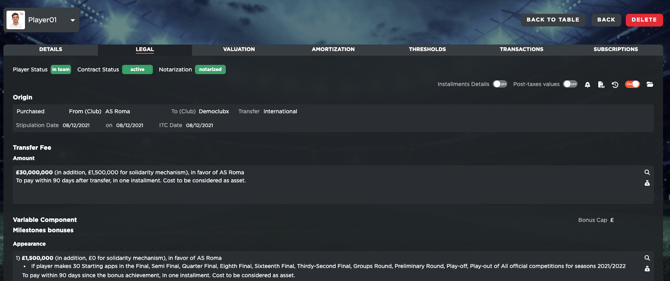
- Keep in mind that the bonuses are divided by Unit-based Bonuses (appearance and performance fees), as well as Milestone Bonuses (appearance, performance, team, signing, custom, and multi-condition bonuses).
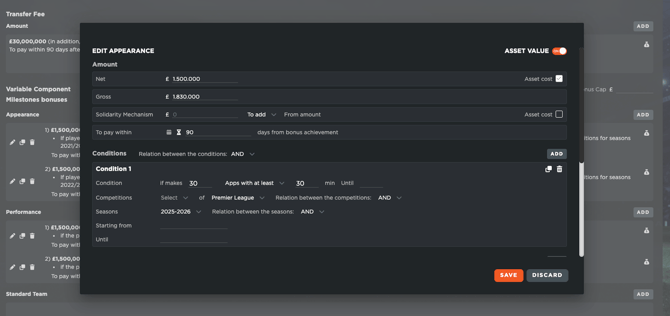
Each single one of them allows users to select from a variety of conditions (i.e minutes played, called up, goals scored, assists, points achieved by the team, signed on x date, etc..)
- Keep in mind that the bonuses are divided by Unit-based Bonuses (appearance and performance fees), as well as Milestone Bonuses (appearance, performance, team, signing, custom, and multi-condition bonuses).
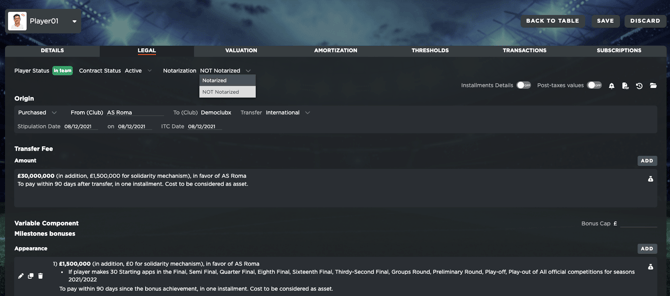
- Once all information is entered, set the contract as active and save it.
Important: For a contract to be considered in the financial tracking system, it must be notarized.
Employment Contracts for Players and Staff Members
Employment contracts regulate the agreement between an individual (player or staff member) and your club. These contracts follow a similar structure to the sales and purchase contracts but focus on employment details.
To create an employment contract:
- Navigate to the Legal Tab of the player's or staff member’s profile.
- Click "Add New" and select Employment Contract.
- Enter the relevant details, including:
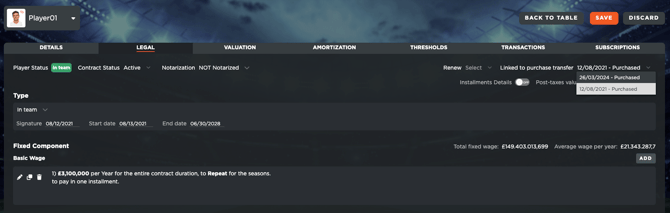
- Contract Type: In team, on loan, or on trial.
- Dates: Stipulation, signature, and end date of the contract.
- Financial Information: Fixed wage/salary, contributions, bonuses, benefits, options, and any applicable release clauses.
- After inputting all necessary data, ensure the contract is activated, linked to a purchase or sales contract (if applicable), and then notarized and saved. You are also able to renew an already existing contract by selecting the 'Renew' tab.
Agent Contracts
Agent contracts are directly linked to player transactions and are essential for tracking an agent’s financial impact on a player’s overall cost.
To create an agent contract:
- Ensure that the agent’s profile has been created under Admin > Squads.
- Within the Legal Tab of a player’s profile, locate the Agent Contract section under the player's contract details.
- Click "Add New" and link the agent to the player's profile.
- Input financial details, including:
- Agent’s Fixed Wage
- Bonuses related to the contract
- Once all details are entered, notarize and save the contract.
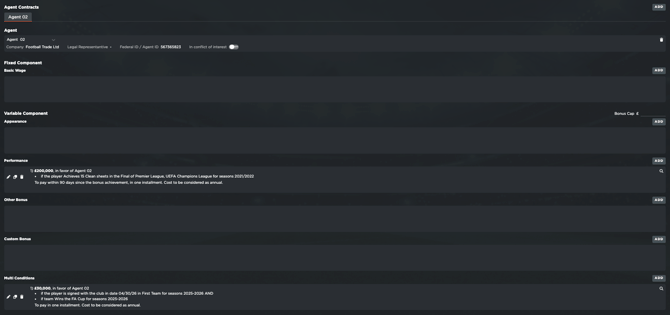
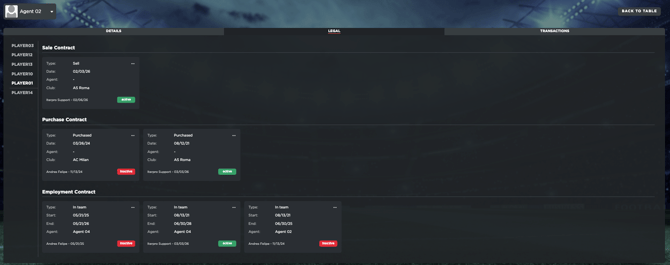
By doing this, you will be able to track the financial impact of the agent in the overall cost of the player, as well as monitor any bonuses linked to the contract. Additionally, within the agent profile, you will be able to see all the players and contracts he has under his name inside your organization.
Final Notes
- Always set contracts as active for them to be recognized in the system.
- Notarization is required for contracts to be considered in financial tracking.
- Ensure that all relevant profiles (players, staff, and agents) are created and linked correctly for a smooth workflow.
- If you sell a player, you will be able to keep track of all the relevant clauses and conditions to be received from the sales contract.
- The contract conditions currently are ONLY available for football (soccer) related accounts, as we directly work with Wyscout as a provider. For the other sports, you can manually track or create custom bonuses/conditions in the contracts.
- Valorization - this is the sum that is collected by the club for a loaned player from another club. It is a section that will only appear in the contract if the Type of Transfer selected is In Team (On Loan) - both for sales or purchase contracts.
- Explanation of different values within the contracts:
- Net Amount: the system automatically calculates the gross amount (or vice versa). You can also manually input each value in case you have it already calculated.
- Solidarity Mechanism: state whether this is to be added or removed from the amount.
- Condition(s): you can insert as many conditions in relation to a bonus. It is important that you state the relation between the conditions (AND or OR). To add a new condition, click on the “+” button in the top-right corner of the conditions box.
- Competition(s): you can state the stage(s) of the competition and which competition(s) the bonus is in relation to. Keep in mind these competitions are the ones that have been set in Settings > Team > Seasons (for employment and purchase contracts). For more information, you can read the following article.
- Season(s): select a specific season(s) or select “for the entire contract duration”. In this case, it's also important that you state the relation between the seasons (AND or OR).
- Start Date (Starting from).
- End Date (Until).
- Date by which the bonus must be paid (To pay within): this can be a specific date or a time frame after the achievement of the bonus. Click the Calendar icon to enter a specific date, or click the Hourglass icon to enter a period from the completion of the condition.
- Installments: you can click on the magnifying glass to manage the installments, clicking on the “+” icon will add new installments. Each installment will have a Date or a Season by which it is due. The sum of all individual installments must equal to the Amount previously set.
- Whether the bonus is subject to a bonus cap or not (Bonus cap can be set in the top right corner of the Bonus section).
- Conditional: further conditions in order for the bonus to be attainable (if the player signs with the current club within, if the player is included in the list for the following competitions)
- Contract 'Denotarization' : ONE user will be able to have permission to 'unfreeze' notarized contracts. This can be set in User > Permissions by the Admin Users, selecting the Legal - Admin permission.
- Clicking on the Folder icon on the top right gives you the possibility to upload and attach any type of file such as PDF, JPEG, etc. and share with the players or Iterpro users that you desire. This is all made for privacy reasons, so that only the people intended view the desired information.
- Clicking on the bell icon allows you to set which other users within Iterpro will get notified about the current contract.
- By clicking on the changelog icon, you will be able to see the timeline related to the current contract showing when and who made any edit to it.
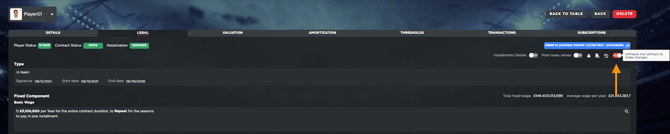
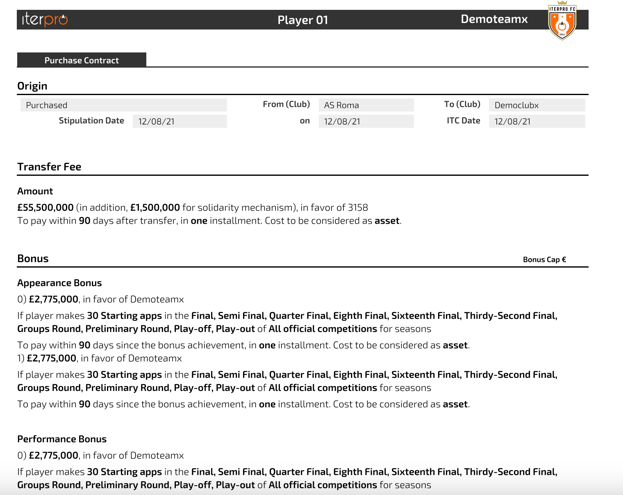
- By clicking on the PDF export icon, it is possible to export the data in the PDF version. Shown below is an example of a Player's PDF report: