
INTRODUCTION TO STRIPE
- 00:00 – Introduction and feature overview
- 00:15 – How to get the Stripe link
- 01:01 – Countries where Stripe is available
ADD THE COMPANY INFORMATION TO STRIPE
- 00:00 – Introduction
- 00:12 – Entering email
- 00:17 – Entering password
- 00:30 – Scanning QR code
- 00:50 – Entering basic information
- 01:01 – Entering business details
- 01:19 – Entering personal information
ADD THE BANK INFORMATION TO STRIPE
- 00:00 – Entering bank account details
- 00:23 – Entering public details
- 00:37 – Reviewing and confirming
- 00:50 – Inserting Stripe data into Iterpro
FEATURE DESCRIPTION
This article describes the process of registering players and using the payment portal— a feature designed to simplify athlete registration, manage payments, and collect all required information.
To enable payments, the system uses Stripe. The Customer Success team will provide a unique link that allows access to the setup screen for configuring the service.
If you haven’t received the link, you can request it directly from your account manager, who will promptly send it to you.
Before proceeding with activation, please note that the steps may vary slightly depending on your bank’s country of residence. However, the general procedure remains unchanged, with only minor differences based on local regulations.
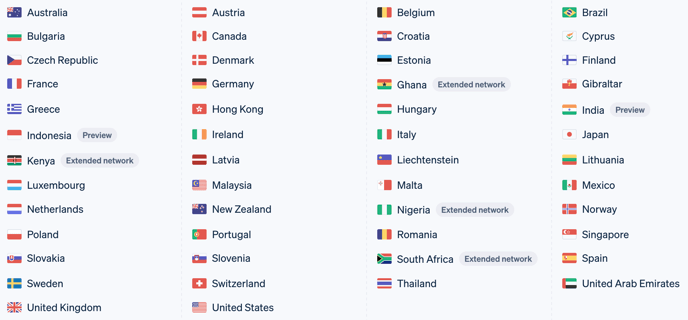
Below is a list of countries where the service is available. If your bank is not based in one of these countries, it is recommended to contact Customer Support, who will help find an alternative solution.
Steps to Register on Stripe and Link Your Account to Iterpro
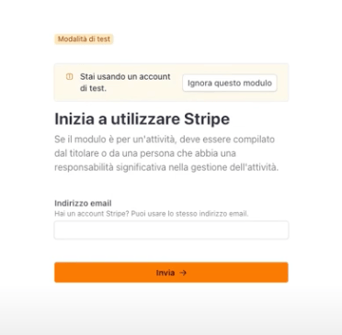
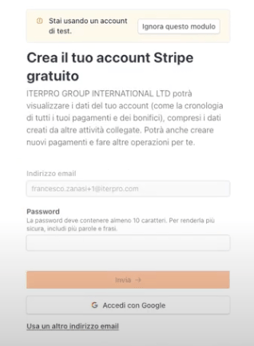
1. Create a Stripe Account
To begin registration, you’ll need to:
-
Enter your email address and choose a password, or sign in with a Google account.
-
Click Submit to proceed.
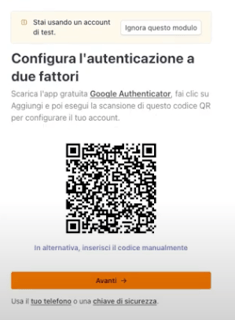
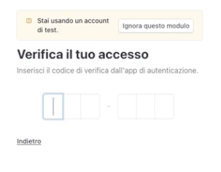
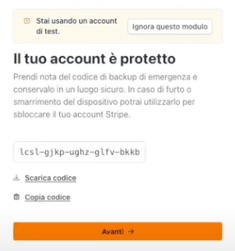
2. Security Setup
-
Scan the QR code using Google Authenticator.
-
Enter the code generated by the Google Authenticator app or Chrome extension.
-
Click Next to continue.
3. Enter Business Information
-
Select your country and business type.
-
Enter the required company information, including:
-
Business name
-
VAT number and tax code
-
Business address
-
Phone number
-
Industry
-
Company website
-
Description of the product or service offered
-
4. Verify Personal Information
You will need to provide some personal details for verification, including:
-
Full legal name
-
Email address
-
Business role/title
-
Date of birth
-
Residential address and phone number
-
Percentage of company ownership
5. Set Up Your Bank Account
To receive payments, you must enter:
-
Bank account details (IBAN, country, and currency)
-
Frequency of fund transfers (e.g. daily, weekly, monthly)
6. Final Settings and Confirmation
-
Define the name that will appear on customers’ bank statements.
-
Enter a phone number for customer support.
-
Review all the information you’ve entered.
-
Click Accept and Submit to complete the process.
7. Link Stripe to Iterpro
Once your Stripe registration is complete, the Iterpro team will link the information you provided to the system.
Before proceeding with any further operations, it’s essential to confirm with your account manager that the account has been successfully connected.