---
title: 9.3 How to create programs for registrations
description: "This article shows how to manage a registration program in all its parts: memberships, products, registration and applicant forms, branding, and much more."
---
[Skip to content](https://support.iterpro.com/en/guide/9.3-how-to-create-programs-for-registrations#main-content)
- [English](https://support.iterpro.com/en/guide/9.3-how-to-create-programs-for-registrations)
- [Italiano](https://support.iterpro.com/it/guide/9.3-come-creare-programmi-per-le-registrazioni)
- [العربية - مصر](https://support.iterpro.com/ar-eg/guide/9.3-كيفية-إنشاء-برامج-للتسجيل)
- [日本語](https://support.iterpro.com/ja/guide/9.3-登録プログラムの作成方法)
English
Show submenu for translations
[](https://app.iterpro.com/auth/login)
- [Iterpro Login Page](https://app.iterpro.com/auth/login)
- [Contact Support](https://share.hsforms.com/1rE7NvsvuTIWBm7WQ1dhslQ1uo0p)
Open main navigation
Close main navigation
- [Iterpro Login Page](https://app.iterpro.com/auth/login)
- [Contact Support](https://share.hsforms.com/1rE7NvsvuTIWBm7WQ1dhslQ1uo0p)
- - [English](https://support.iterpro.com/en/guide/9.3-how-to-create-programs-for-registrations)
- [Italiano](https://support.iterpro.com/it/guide/9.3-come-creare-programmi-per-le-registrazioni)
- [العربية - مصر](https://support.iterpro.com/ar-eg/guide/9.3-كيفية-إنشاء-برامج-للتسجيل)
- [日本語](https://support.iterpro.com/ja/guide/9.3-登録プログラムの作成方法)
English
Show submenu for translations
How can we help you?
- There are no suggestions because the search field is empty.
1. [User Guide](https://support.iterpro.com/en/guide?hsLang=en)
2. [Administration](https://support.iterpro.com/en/guide/administration?hsLang=en)
3. [Registrations](https://support.iterpro.com/en/guide/administration?hsLang=en#registrations)
# 9.3 How to create programs for registrations
## This article shows how to manage a registration program in all its parts: memberships, products, registration and applicant forms, branding, and much more.
### INTRODUCTION
### CREATE A PROGRAM AND MANAGE MEMBERSHIPS
- **0:00** – Introduction
- **0:12** – Creating a new program
- **0:59** – Creating Memberships
### CREATE AND MANAGE REGISTRATION PRODUCTS
- **0:00** – Creating new products
- **0:18** – Entering product details
- **0:44** – Saving
### CUSTOMIZE REGISTRATION BRANDING
- **0:00** – Introduction
- **0:05** – Customizable elements
- **0:45** – Saving and form preview
### CONFIGURE THE REGISTRATION FORM
- **0:00** – Introduction
- **0:14** – Mandatory pages
- **0:30** – Creating custom pages
- **1:39** – Saving and preview
### CONFIGURE THE CANDIDATE FORM
- **0:00** – Introduction
- **0:10** – Mandatory section
- **0:16** – Adding additional fields
- **1:00** – Saving and preview
### FEATURE DESCRIPTION
The **Registrations** section within the Commercial area allows you to create and manage programs and application forms in a structured and effective way. It is the core of the registration system, enabling the creation and management of events and memberships that players can enroll in.
This section is divided into four main areas:
- Programs
- Branding
- Registration Forms
- Applicant Forms
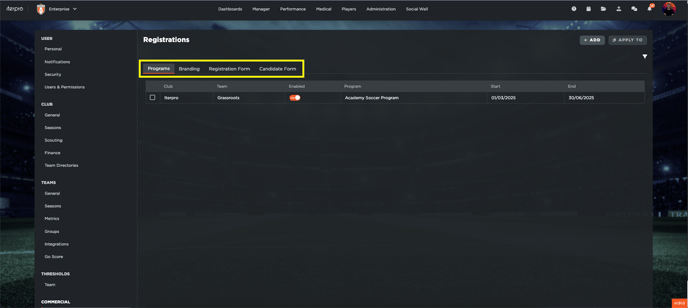
#### Create and Manage Your Programs
To add a new program:
- Go to the *Programs* section.
- Click the **Add** button to start creating a new program.
- Fill in the required fields, including:
- **Title:** Should be clear and descriptive, e.g., *Academy Soccer Program* or *Pre-Season Training Camp*
- **Associated Team:** Select the team the program is for
- **Registration Dates:** Set opening and closing dates for registration
- **Support Email:** Provide a support email for users. This will appear on the registration form

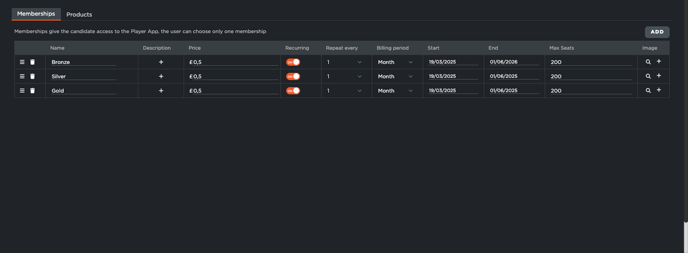
#### Managing Memberships
In the middle of the screen, you'll find the **Membership** section, where you can define specific membership packages for the program.
You can configure aspects such as:
- **Price:** Set the registration fee
- **Event Frequency:** Indicate if it’s a recurring event and its frequency
- **Time Period:** Define start and end dates
- **Max Participants:** Limit how many can join
- **Representative Image:** Add an image for clearer and more appealing presentation
#### Managing Products
In the **Products** section, you can create and manage items available for purchase by users. This is ideal for one-time purchase items like jerseys, gloves, or shoes.
To add a new product:
- Go to the *Products* section
- Click the top-right button to add a new item
- Fill in the fields:
- **Title:** Product name
- **Description:** Brief description of product features
- **Selectable Quantity:** Set min/max quantity per order
- **Stock Availability:** Indicate available quantity
- **Images:** Upload one or more images
- **Price:** Set the item’s price
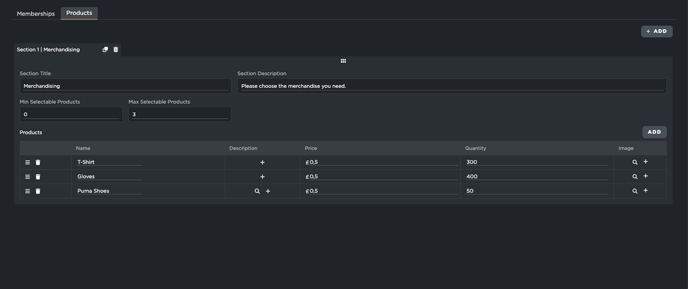
Once all required information is entered (Memberships and Products), click **Save** to make the product available for purchase.
At the top of the screen, there’s also a section called **Applicant Form**, which will be explained in the next videos.
#### Customize Registration Branding
Once the program is created, the next step is customizing the branding of the registration form, to align visually with your club or event’s identity.
**Accessing Customization**
- Go to the *Branding* section
- Click **Edit** to customize graphics and text
**Customizable Elements**
You can adjust:
- **Form Title:** Edit the text and its color (defaults to white if none is selected)
- **Primary Colour:** Main color for buttons/icons
- **Registration Link:** Customize for brand consistency
- **Logo:** Upload a logo to appear at the top of the form
- **Background Image/Color:** Choose a background image or color
- **Confirmation Message:** Add a custom message displayed after form completion
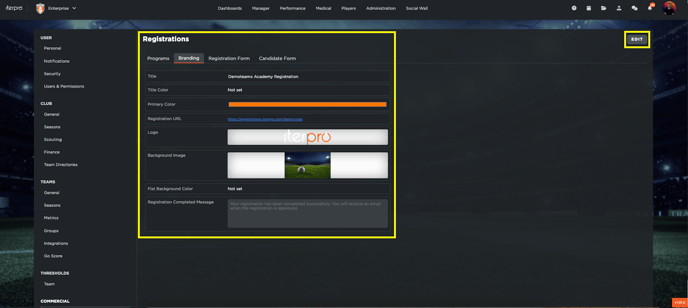
After setting everything up, click **Save** to apply changes.
You can use the generated registration link to preview and share the fully branded form.
#### Configuring the Registration Form
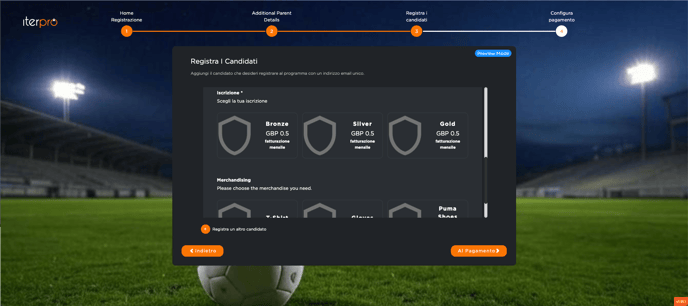
After defining the program and customizing branding, the next step is configuring the **Registration Form**, where users input their personal information.
**Form Access and Structure**
- Go to the *Registration Form* section
- Click **Edit** to begin editing
The form has required and optional/customizable pages.
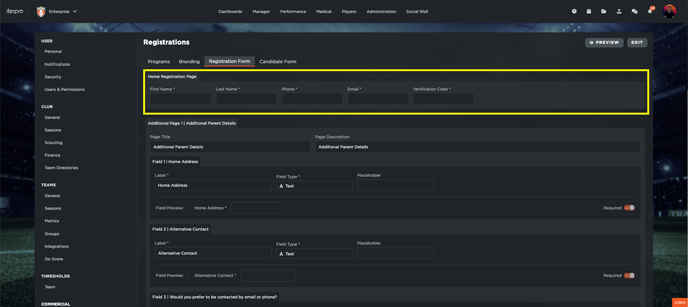
**Required Pages**
- **Home Registration Page:** Mandatory, collects basic user info
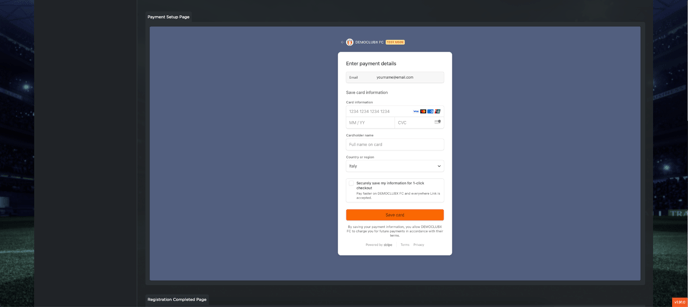
- **Payment Setup Page:** Also mandatory, for payment details
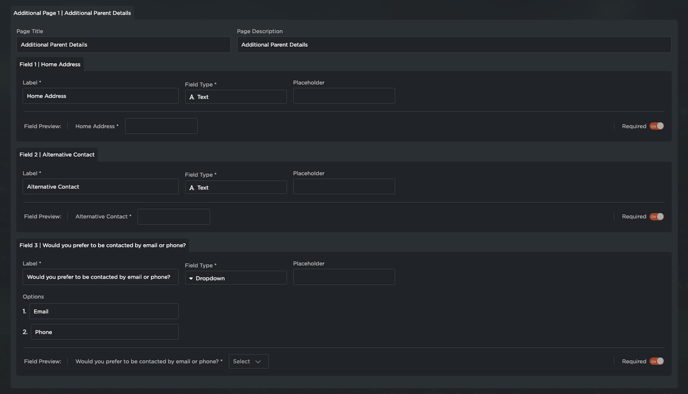
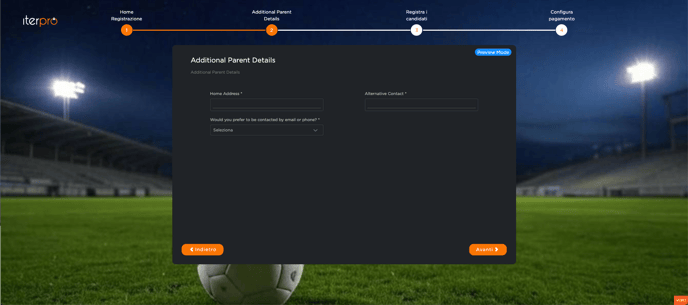
**Custom Pages** You can add extra pages to collect specific information.
Example shown in the video: “Additional Parent Details,” which includes:
- Page title and description
- Custom fields with:
- Label/Title
- Answer type (text, dropdown, checkbox, etc.)
- Specific configurations depending on field type
Each field includes a live preview for clarity.
Once configured:
- - Click **Save** to save changes
- Use **Preview** to see the full form
#### Customizing the Applicant Form
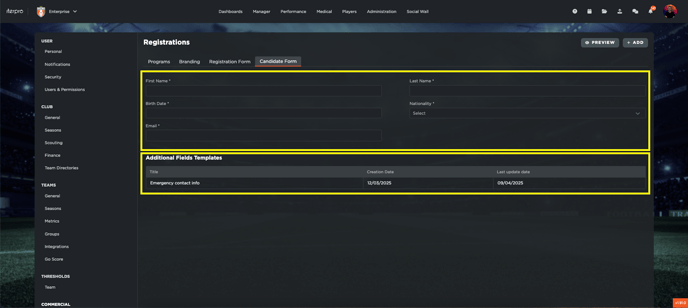
The **Applicant Form** section allows for detailed collection and management of participant information. It’s closely tied to registration and essential for data management.
**Form Structure**
- **General Contact Info:** Mandatory section for basic data (name, surname, contacts)
- **Customizable Additional Fields:** Optional section for more specific information
****
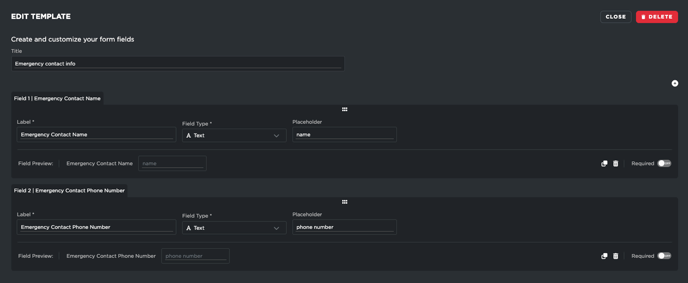
**Creating and Editing Fields**
- Click **Add** to create a new field
- To edit an existing field, select it from the list
Each field can be configured with:
- Title
- Response type (short text, multiple choice, dropdown, etc.)
- Real-time preview
You can add more fields via the “+” icon and rearrange them using drag & drop.
Once finished:
- Click **Save**
- Click **Preview** for the full form
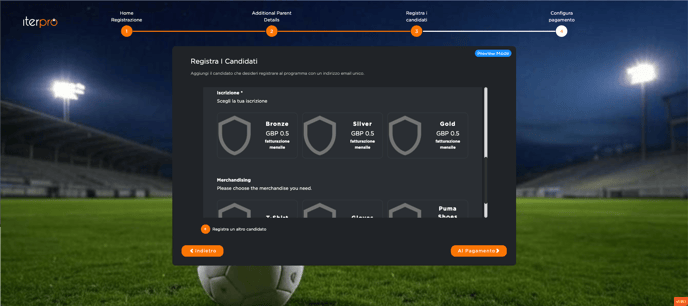
Users will enter their personal details in the initial section.
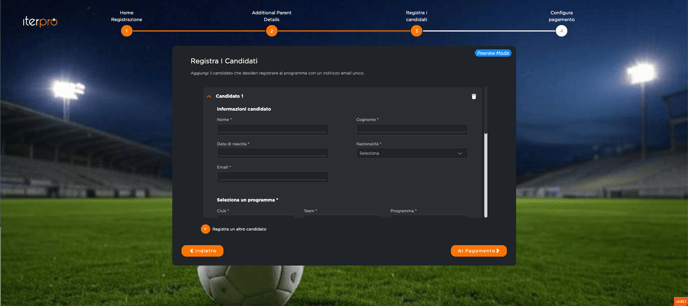
Scrolling down, they’ll choose the program they want to register for. After selecting, the form will show:
- Custom fields for the selected program
- Memberships and products linked to that program, as defined in the setup phase
- [What's New](https://support.iterpro.com/en/guide/whats-new?hsLang=en)
- [Quick Onboarding](https://support.iterpro.com/en/guide/quick-onboarding?hsLang=en)
- [Account set-up and other](https://support.iterpro.com/en/guide/account-set-up-and-other?hsLang=en#main-content)
- [Login & Iterpro overview](https://support.iterpro.com/en/guide/account-set-up-and-other?hsLang=en#login-iterpro-overview)
- [Settings](https://support.iterpro.com/en/guide/account-set-up-and-other?hsLang=en#settings)
- [Create, archive and delete players](https://support.iterpro.com/en/guide/account-set-up-and-other?hsLang=en#create-archive-and-delete-players)
- [Other](https://support.iterpro.com/en/guide/account-set-up-and-other?hsLang=en#other)
- [Manager](https://support.iterpro.com/en/guide/manager?hsLang=en#main-content)
- [Tactics](https://support.iterpro.com/en/guide/manager?hsLang=en#tactics)
- [Planning](https://support.iterpro.com/en/guide/manager?hsLang=en#planning)
- [Videogallery](https://support.iterpro.com/en/guide/manager?hsLang=en#videogallery)
- [Drills](https://support.iterpro.com/en/guide/manager?hsLang=en#drills)
- [Attendances](https://support.iterpro.com/en/guide/manager?hsLang=en#attendances)
- [Performance](https://support.iterpro.com/en/guide/performance?hsLang=en#main-content)
- [Session Analysis](https://support.iterpro.com/en/guide/performance?hsLang=en#session-analysis)
- [Workload Analysis](https://support.iterpro.com/en/guide/performance?hsLang=en#workload-analysis)
- [Assessments](https://support.iterpro.com/en/guide/performance?hsLang=en#assessments)
- [Readiness](https://support.iterpro.com/en/guide/performance?hsLang=en#readiness)
- [Medical](https://support.iterpro.com/en/guide/medical?hsLang=en#main-content)
- [Medical Records](https://support.iterpro.com/en/guide/medical?hsLang=en#medical-records)
- [Infirmary](https://support.iterpro.com/en/guide/medical?hsLang=en#infirmary)
- [Examinations](https://support.iterpro.com/en/guide/medical?hsLang=en#examinations)
- [Medical Statistics](https://support.iterpro.com/en/guide/medical?hsLang=en#medical-statistics)
- [Player](https://support.iterpro.com/en/guide/player?hsLang=en#main-content)
- [My Team](https://support.iterpro.com/en/guide/player?hsLang=en#my-team)
- [Scouting](https://support.iterpro.com/en/guide/player?hsLang=en#scouting)
- [Transfers](https://support.iterpro.com/en/guide/player?hsLang=en#transfers)
- [Administration](https://support.iterpro.com/en/guide/administration?hsLang=en#main-content)
- [Squads](https://support.iterpro.com/en/guide/administration?hsLang=en#squads)
- [Finance Overview](https://support.iterpro.com/en/guide/administration?hsLang=en#finance-overview)
- [Bonus Tracking](https://support.iterpro.com/en/guide/administration?hsLang=en#bonus-tracking)
- [Cash Flow](https://support.iterpro.com/en/guide/administration?hsLang=en#cash-flow)
- [Transactions](https://support.iterpro.com/en/guide/administration?hsLang=en#transactions)
- [Registrations](https://support.iterpro.com/en/guide/administration?hsLang=en#registrations)
- [Mobile apps](https://support.iterpro.com/en/guide/mobile-apps?hsLang=en#main-content)
- [Player App](https://support.iterpro.com/en/guide/mobile-apps?hsLang=en#player-app)
- [Coach App](https://support.iterpro.com/en/guide/mobile-apps?hsLang=en#coach-app)
- [Director App](https://support.iterpro.com/en/guide/mobile-apps?hsLang=en#director-app)
- [Iterpro Login Page](https://app.iterpro.com/auth/login)
- [Contact Support](https://share.hsforms.com/1rE7NvsvuTIWBm7WQ1dhslQ1uo0p)
- [Terms & Conditions](https://www.iubenda.com/terms-and-conditions/53739842)
- [Privacy Policy](https://www.iubenda.com/privacy-policy/53739842)
[](https://iterpro.com/)
Copyright © 2025, Iterpro Support Team