
MEDICAL RECORDS OVERVIEW
- 00.20: readiness score
- 00.25: injury history
- 00.29: chronic issues management
- 00.49: active test metrics last records
HOW TO SET TEST ACTIVE METRICS
- 00.18: activate test metrics
- 00.40: important note to save the metrics section
ASSESSMENTS, TREATMENTS & MEDICAL SCREENING
- 00.02: assessments section
- 00.13: add treatments both for prevention and injuries
- 00.49: add medical screening and set the expiration date
FEATURE DESCRIPTION
Medical Records Overview
In the medical section, users can access and review the medical records of each player, which include all relevant health-related information. Upon entering this section, users will see a list of all active players within the selected team. By selecting a specific athlete, users can view detailed medical history.
The case history displays the player's daily readiness status along with all associated details. Additionally, users can review a list of past injuries, as well as any recorded chronic issues.
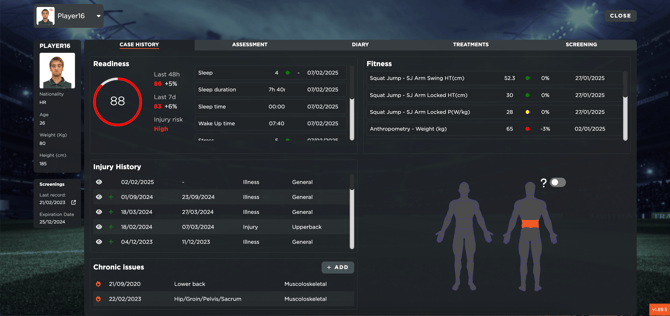
If necessary, users can add a new chronic issue by clicking on the "Add" button. Should this chronic issue flare up, it will automatically generate a specific injury entry in the infirmary. This allows users to manage it like a regular injury but with a designated tag indicating its chronic nature.
Furthermore, the section includes the most recent test results that have been set as active in the settings.
How to Set Test Active Metrics
To configure active test metrics, users must navigate to Settings > Teams > Metrics and open the Team Metrics tab. Here, users can click on "Edit" and access the Test Metrics accordion.
On the left side, users will find a list of all created test metrics, including both performance and medical metrics. On the right side, they will see the currently active metrics. To activate a new metric, users need to select it and move it to the active section using either the designated button or drag-and-drop functionality.
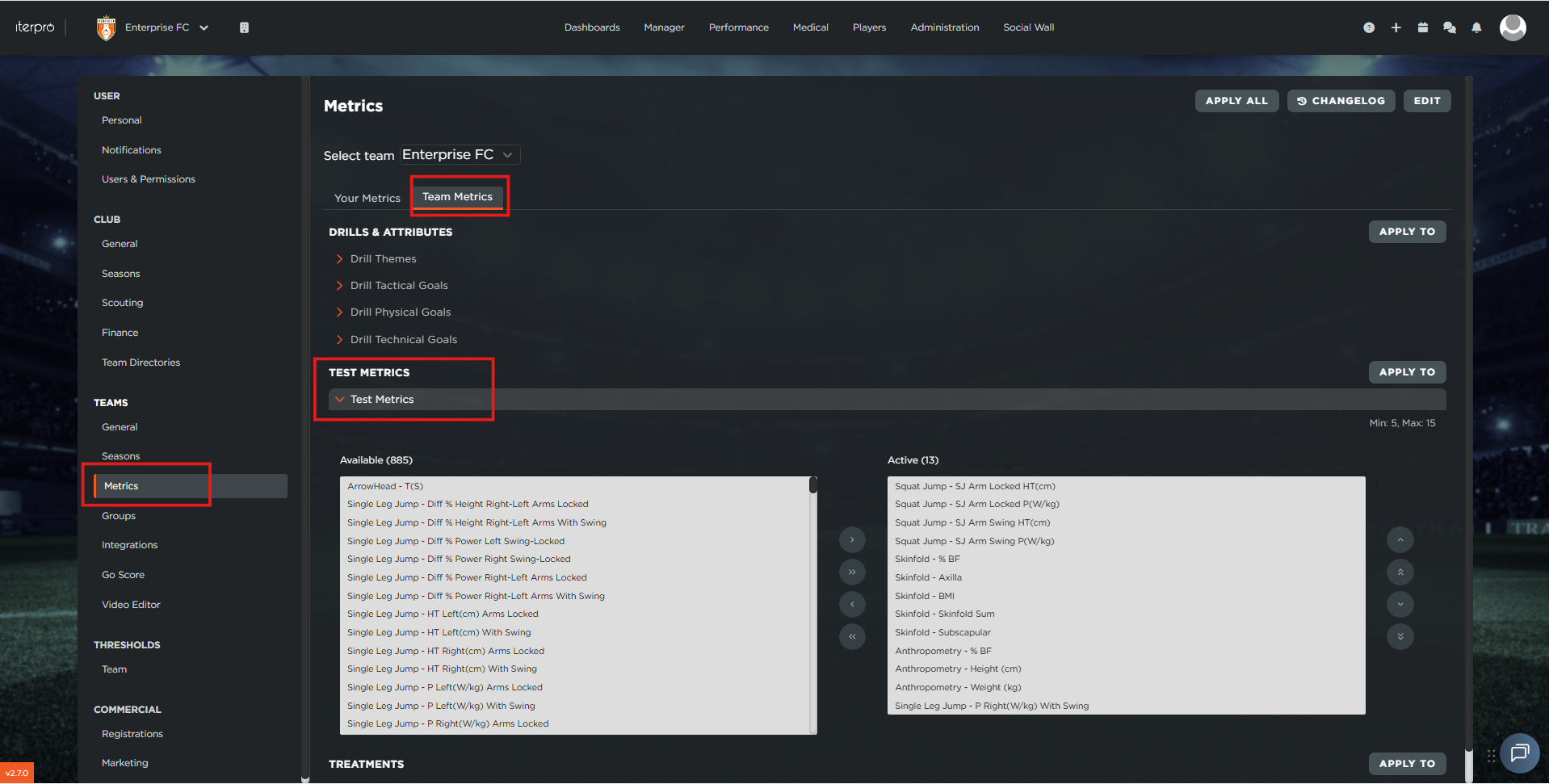
Users must ensure that a minimum of five and a maximum of fifteen metrics are active at any given time. If an error message appears in another section of the platform, it may indicate that the correct number of active metrics has not been set for other categories.
Assessments, Treatments, and Medical Screening
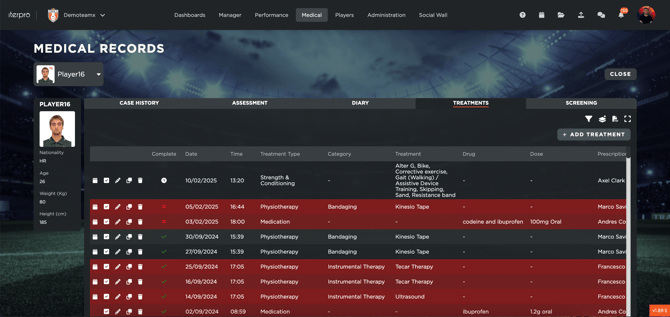
In the player's Medical records card, you can find also the Assessments, Treatments and Medical Screening sections. In the first one, the system provides an overview of all assessments conducted on a player, including medical exams and functional tests. In the Treatments section functions are similar to the Infirmary section but with some key differences.
-
The treatment records are color-coded:
-
Red treatments are linked to injuries.
-
Grey treatments are related to preventive care.
-
-
When creating a new treatment, users can choose whether to associate it with a specific injury or leave it unlinked.
-
Treatments can be applied to one or multiple players. This is especially useful for group treatments, such as prehabilitation exercises for an entire team or a subset of players.
-
The same logic applies to multiple treatments, allowing efficient management of therapeutic interventions.
Finally, the Medical Screening section allows users to add medical screenings for players. This includes adding notes, attaching files, and, importantly, setting an expiry date. When a medical screening is approaching its expiration, the system will automatically send notifications to ensure timely updates.