
INTRODUCTION
CREATE A NEW TEST
- 00.06: enter the test's information
- 00.43: add the test metrics manually
- 01.23: add the test metrics by CSV
CREATE A NEW RECORD
- 00.15: create a new record
- 00.30: add the test data manually
- 00.39: import test data by CSV
- 00.53: how to manage the CSV
- 01.43: upload the CSv into the system
ANALYSE TEST RESULT
- 00.00: test thresholds
- 00.17: comparison test analysis
- 01.09: period test analysis
- 01.48: threshold values feedback
FEATURE DESCRIPTION
The workflow used for Performance - Assessment - Tests follows a structure similar to the one used for Medical - Examinations. The main difference lies in the type of test being created and the metrics that are evaluated.
To begin working with performance tests, navigate to the Assessment area of the platform and open the Test section.
Creating a New Test Protocol
This section contains the full list of testing protocols currently available in the system and allows users to create new ones, by clicking on Add New.
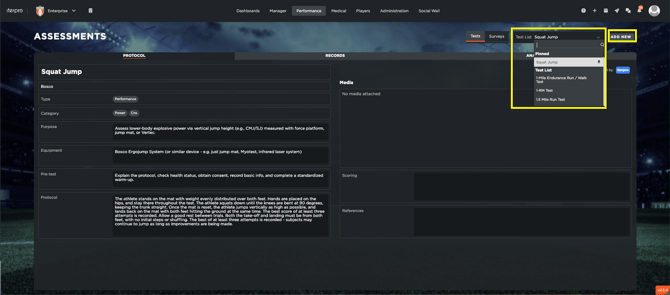
This action opens the configuration interface where the structure of the new test and its associated information are defined.
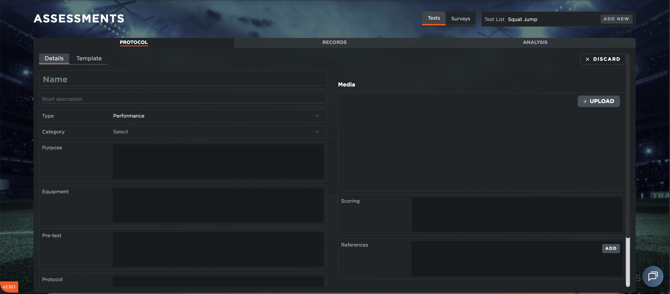
The configuration begins with the test name, which serves as the primary identifier for the protocol. A short description can also be entered to summarise the objective or the nature of the test. The user must then select the Type, choosing between Performance and Medical, depending on the context in which the test will be used.
Another important field is the category. Categories allow tests to be grouped logically within the system. Assigning a category becomes particularly useful when searching, filtering, or organising tests in environments where many protocols are stored.
Furthermore, users can describe the purpose of the test, outline the equipment required to perform it, and specify any pre-test preparations that must be completed before the test begins. The protocol field can be used to describe the step-by-step procedure used during the test, while the scoring section can explain how results should be interpreted. In addition, a reference field can be used to link supporting research or documentation. Media files such as images or videos related to the test can also be attached to provide further guidance.
Once the descriptive information has been completed, the next step is to define the metrics used to evaluate the test results. Click on Template, where the system allows users to define these metrics in two different ways: by creating them manually within the interface or by importing a structured CSV file that automatically generates the required metrics.
When creating metrics manually, the user begins by defining the player column, which identifies the player associated with each row of data. After defining this column, additional metrics can be created by clicking Add within the metrics configuration area.
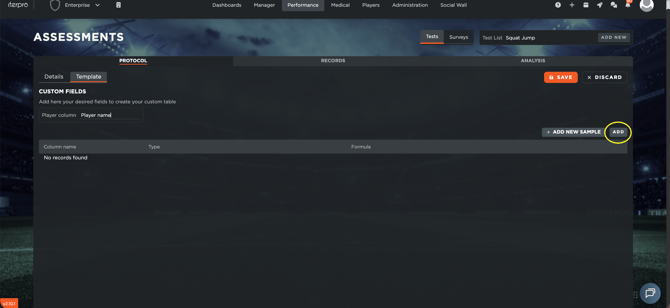
Each new metric added to the protocol must then be configured. The user can assign a name to the metric and specify the type of data that will be recorded. A metric can store a numeric value, a text value and a formula. When the formula option is selected, a formula editor becomes available: the user selects the required elements using the formula editor interface and inserts them into the calculation area.
As an alternative to manual configuration, metrics can also be created automatically through the import of a CSV sample file.
To prepare the file, the user creates a spreadsheet in which each column represents a metric that should be recorded during the test. The file must then be saved as a comma-delimited CSV file, as this format allows the system to correctly interpret the structure of the data.
After uploading the file, the platform automatically generates the corresponding metrics based on the columns present in the document.
Once the import is completed, the generated metrics appear in the metrics list. At this stage, the user can still review and adjust each metric, including selecting whether it should be treated as a numeric value, text field, or formula.
After all required information and metrics have been defined, the test protocol can be finalised by clicking Save. The system then adds the new protocol to the list of available tests.
Creating and Managing Test Records
Once a protocol has been created, the next step is to record the results obtained during actual testing sessions. These results are stored in Records.
The records page displays any test sessions that have already been recorded in the system. To add a new testing session, click Add New within the records page. A small configuration window appears where the user specifies the date and time when the test was performed, then click on Create.
After creating a record, the test data can be entered in two different ways: manually through the interface or imported from a CSV file.
For the manual entry click Edit and type values directly into each metric column using the keyboard.
When working with larger datasets, it is often more efficient to import the results from a CSV file. The first step in this process is to download the system’s CSV template, which ensures that the imported file follows the correct structure.
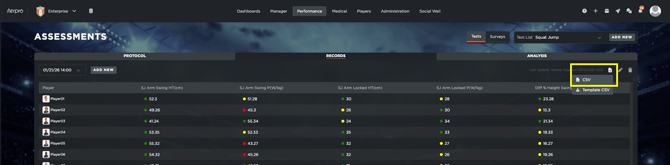
The downloaded file contains the exact column structure required by the system. When preparing the CSV file, it is essential that the column names remain identical to those in the template. If the structure differs, the platform will not be able to correctly recognise and map the imported data.
Within this file, users may include data for one or multiple players. It is also possible to include results from multiple test sessions within the same document. If the rows in the CSV contain different dates and times, the system will automatically generate separate records for each timestamp during the import process.
Once the file has been prepared, the data can be uploaded into the platform.

After the upload is completed, the system automatically populates the corresponding records with the imported player data.
If thresholds have been set within Player → My Team section, the values recorded during tests will then be displayed with colour-coded indicators, allowing practitioners to quickly identify whether a result falls within the expected range.
Analysing Test Results
After results have been entered or imported, the data can be analysed by clicking on Analysis.
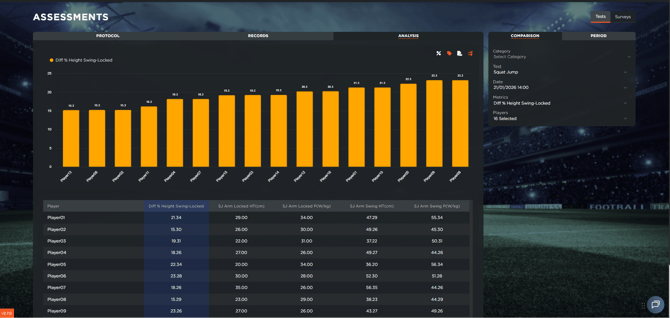
The Comparison view allows users to analyse results from specific test sessions. Within this view, filters are available to refine the displayed data, including the test, date, metrics, and players. The analysis chart displays data labels and ordered metrics for easier interpretation, while the column table below provides a detailed overview of all selected values.
Comparison data can also be exported in PDF or CSV format. The PDF export generates a ready to share report, while the CSV export allows further analysis using spreadsheet software such as Excel.
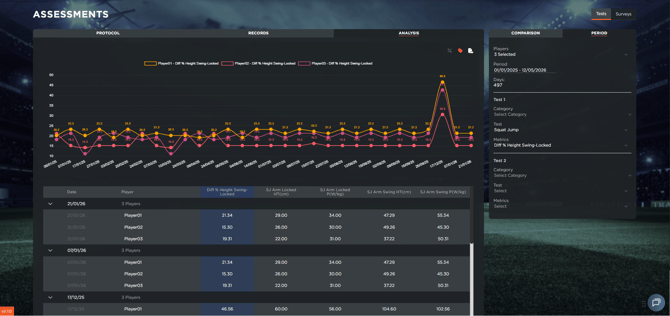
The Period Analysis view focuses on longitudinal evaluation, allowing practitioners to monitor performance changes over time. In this view, users can filter the test, period, metrics, and players to analyse specific trends. Similar to the Comparison view, the chart displays data labels and the table below contains all selected metrics in detail.
Period Analysis data can also be exported using the same PDF and CSV download options.
Both analysis charts allow the display of threshold indicators by clicking the threshold icon within the analysis interface. The displayed percentages indicate how much the data differs from the configured threshold value.