
GENERAL INTRODUCTION
- 00.12: overview of the training and game sessions
- 00.36: suggestions about which file/session you can import
CSV AND API IMPORT
- 00.00: csv import
- 00.07: overview of the data
- 00.24: additional selections
- 00.35: importing game sessions
- 01.11: associate drills
- 01.43: API import
FEATURE DESCRIPTION
Introduction
Before you import the GPS data, remember ALWAYS first to set up the GPS integration and metrics, by following the links below:
- https://support.iterpro.com/en/guide/performance-introduction-gps-data-integration-and-set-your-gps-metrics
- https://support.iterpro.com/en/guide/how-to-set-the-thresholds-for-gps-metrics-and-test-metrics
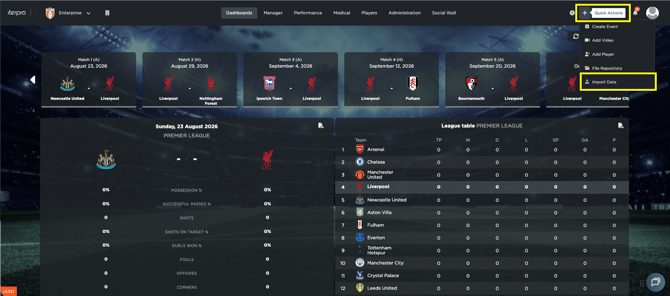
Now, navigate to Import data, after clicking on the + icon in the top-right corner (quick action menù).
The main interface displays the list of training and game events related to the selected team. Within such a screen, you can also recalculate the thresholds or the default metrics by selecting the cog icon.
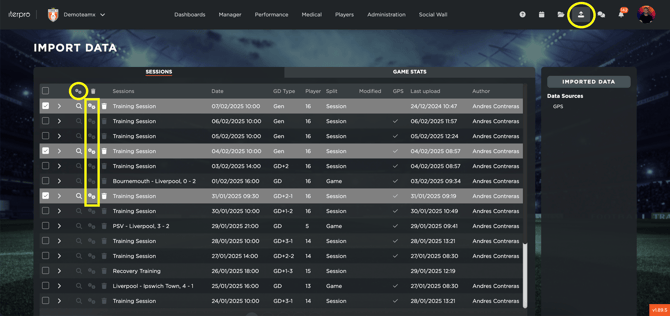
CSV import
To begin the import process, click on the GPS section.
- Start by selecting the file to import. The system allows you to upload multiple files or sessions contained within the same file. However, it is recommended to import a maximum of 10 to 15 sessions at a time to ensure smooth processing.
- Once the files have been selected, a menu will appear displaying one or different dropdowns, which include the contents of your CSV, such as split names and drills. If you do not display such table and an error appears in the system, check if you set up correctly all the settings to map the CSV, by following this article: https://support.iterpro.com/en/guide/performance-introduction-gps-data-integration-and-set-your-gps-metrics
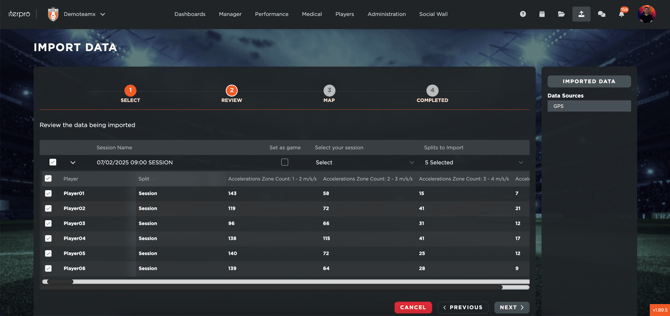
- You can select or deselect specific rows before importing.
- You can link the data to an existing event.
- If you are importing a game event, click on the designated icon. Note that a game event must already exist in the system’s planning section before doing the import.
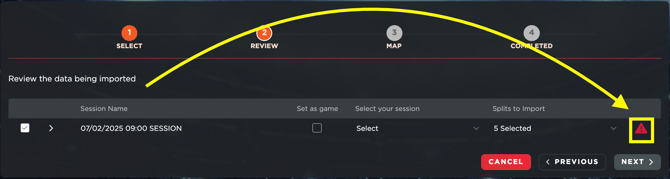
- If there are errors in the file, the system will notify you. For example, if players listed in the CSV are not found in the system, an error message will appear beside each session. You can review these issues before proceeding by clicking on the icon.
- After reviewing the data, click Next. At this stage, you will see a list of drills:
- You can associate the drills with existing ones in Manager - Drills - Technical drills
-
- You can create new drills directly from this interface (a new drill will be created in Manager - Drills - Technical drills).
- You can choose not to map a drill if necessary.
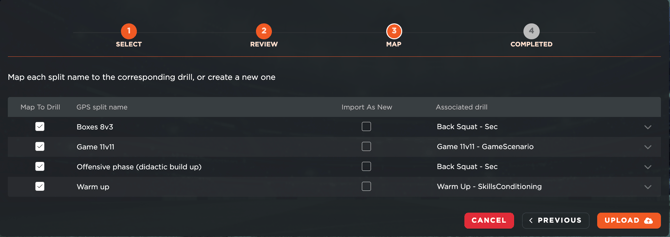
- Finally, clicking Upload will complete the import process.
- A specific icon allows you to access the workload analysis for the uploaded data.
- Another icon redirects you to the events planning section.
Importing via API
If using an API, the process is slightly different:
- The provider’s name appears instead of the GPS icon.
- You simply select a date and click Search.
- The system will retrieve all sessions for that date, following the same procedure as with a CSV file.
By following these steps, you can efficiently import and manage training session data, whether using CSV files or an API integration.