
SET THE INJURY STATUS
- 00.10: injury status descriptions
TRACK EXAMS AND ASSESSMENTS
- 00.04: add new exams
- 00.17: add a new assessment
- 00.39: set a player as not available
- 01.12: set a player as available
STORE YOUR TREATMENTS
- 00.13: create a new treatment
- 00.44: create multiple treatments
CLOSE THE INJURY
FEATURE DESCRIPTION
Set the Injury Status
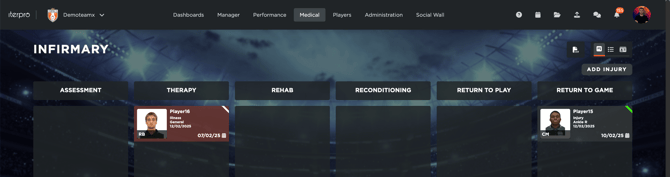
Once an injury has been recorded, its status can be updated by simply dragging and dropping the issue to the appropriate phase. The suggested phases are:
-
Assessment – When the player is being evaluated.
-
Therapy – When the player is undergoing treatment only.
-
Rehab – When the player starts rehabilitation.
-
Reconditioning – When the player begins conditioning for a return to play.
-
Return to Play – When the player is ready to train with the team.
-
Return to Game – When the player is ready to participate in matches.
The status can be adjusted as needed to accurately reflect the player's progress.
Track Exams and Assessments
Within the injury card, users can navigate to the Assessment section to add, first, medical exams related to the injury. For example, a radiography can be attached along with any necessary comments.

The Assessment section is also crucial for evaluating the injury at different points in time. Information from the player’s evaluation should be recorded, including the availability in the squad, which will be shared across all departments and influence statistical data.
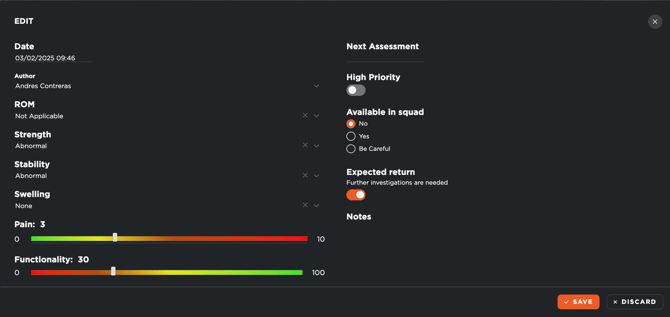
For instance, if an injury occurred on November 1st, an assessment can be created on this date marking the player as unavailable. This change is reflected visually in the system: the player’s card turns red in the infirmary page to indicate unavailability. Once the player is ready to return to training, a new assessment is created, marking them as available, and the card colour changes back to grey. This update is recorded in the system and made visible to all relevant personnel.
Store Treatments
Throughout the recovery process, treatments can be logged under the Treatments section within the injury card. To add a new treatment, simply click on Add Treatment and fill in the necessary details. Custom treatments can also be created and saved.
For each treatment added, a corresponding medical event is automatically scheduled in the player's calendar. Users can edit, duplicate, delete, or access the planned event directly.
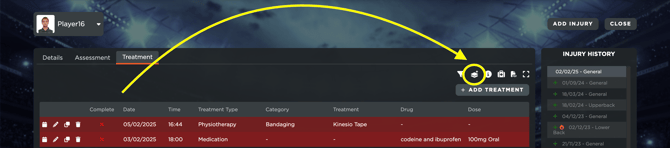
Additionally, multiple treatments can be grouped into a single event if they share the same date and time and if they are created by clicking the Multiple treatment icon. Once saved, the treatments will appear in the treatment list.
Close a Medical Issue
Once the recovery process is complete, the injury can be closed by accessing the injury card, clicking Edit, and setting the Current Status to "Healed." The user can specify the end date, including retroactive dates in case the injury closure was not recorded on time.
Once saved, the injury will no longer appear in the infirmary section, ensuring that only active cases are displayed in the system.
It's important ote also that, once the injury is closed, it can still be edited, together with the treatments.