TEAM SELECTION & DASHBOARD OVERVIEW
-
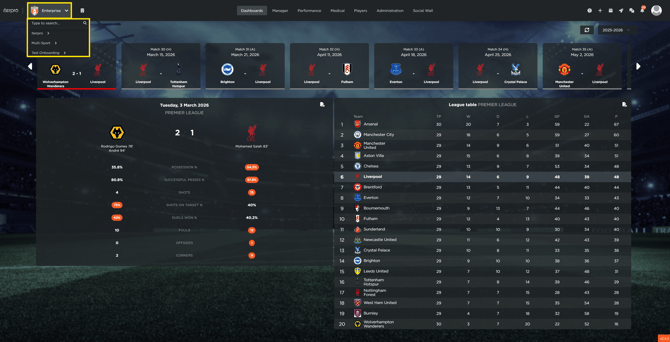
0.05 use the top-left dropdown to select teams
-
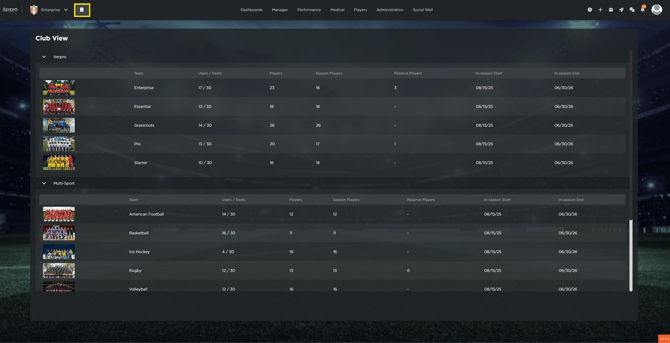
0.11 click the club view icon for a comprehensive overview
-
0.20 monitor total players, active users, and season dates
-
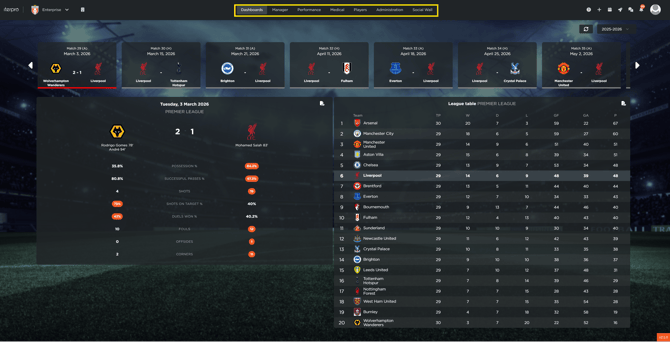
0.30 access sections and modules in the central dashboard
-
0.37 note that locked screens indicate restricted permissions
FEATURES DESCRIPTION
Managing Team Access and the Club View
The top-left corner of the interface is dedicated to multi-team management and organizational oversight. This ensures that users handling various age groups or departments can switch contexts without re-logging.
-
Team Selection: Use the primary dropdown menu to toggle between the different teams or squads to which you have been granted access.
-
The Club View: Located immediately next to the team dropdown, the Club View icon provides an executive summary of your entire organization. This screen allows you to monitor critical data points at a glance, including the total number of registered players and reserves, the number of active system users, and the specific start and end dates for each team’s competitive season.
Exploring the Central Dashboard and Permissions
The central area of your screen hosts the various modules and functional areas specific to the selected squad. This area adapts based on your role and the specific configuration of your platform.
If certain sections or screens appear with a "locked" icon, this indicates that the features are either restricted by your specific user permissions or are not included in your organization’s current contract. These permissions are managed by your system administrator to ensure data privacy and relevant access for each staff member.