CREATE A NEW TEST
- 00.21: create a new test
- 00.28: info needed to save the test
SET THRESHOLDS FOR TEST METRICS
- 00.00: set active test metrics
- 00.31: set test metrics' thresholds
- 00.44: choose the interval of confidence and add the baseline
- 01.33: apply thresholds to players
CREATE NEW RECORDS AND ADD THE DATA
- 0.00: create a new record
- 0.26: add data manually
- 0.46: add data by CSV
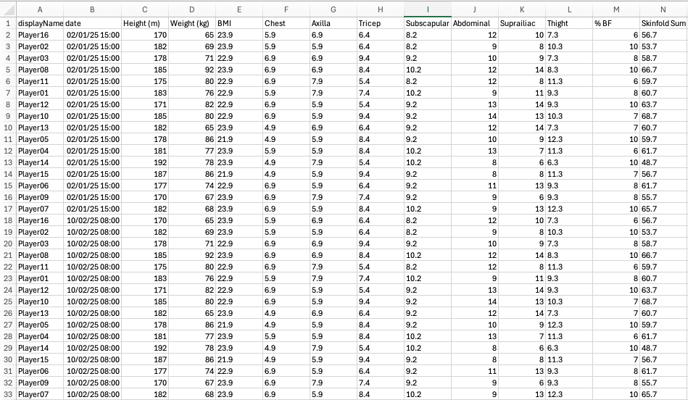
- 1.05: CSv structure
FEATURE DESCRIPTION
Creating a New Test
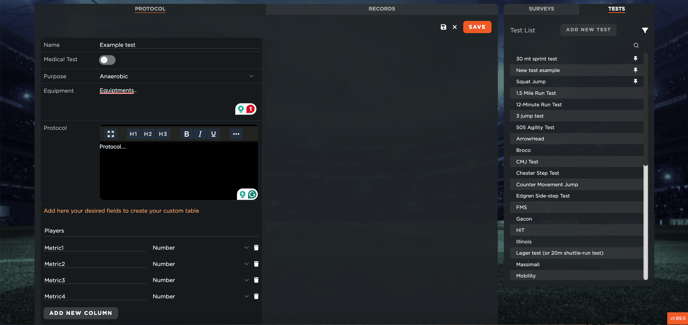
To collect all medical tests, navigate to the "Examination" section. This section functions similarly to the "Assessment" section in the Performance department. On the right side, you will find a list of default tests available for use. However, if needed, you can create a new test from scratch.
To create a new test:
- Enter the test name
- Enable the "Medical Test" option.
- Select the purpose from a predefined list
- Specify the equipment and protocol used
- Define the structure of the test by adding columns for the required metrics
It is important to include the player name as the first column. You can then add additional columns for different data points and define whether each value should be a number or text.
Once all the details have been set, click "Save". Your newly created test will now appear in the right panel alongside the default tests.
Setting Thresholds for Test Metrics
Before setting thresholds for test metrics, ensure the necessary metrics are activated.
To activate metrics:
-
Navigate to "Settings" → "Teams" → "Metrics."
-
Move to "Team Metrics" and select the metrics relevant to the test.
-
Keep in mind that these active metrics will be applied to all users with access to the team.
-
Click "Save" once the selection is complete.
After activating the metrics, you can set thresholds:
-
Go to the "Thresholds" section.
-
Switch to the "Test" tab, where you will see a list of active test metrics.
-
Click "Edit" to modify a metric’s threshold.
-
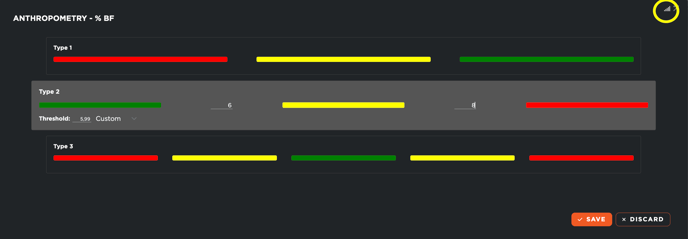
Choose from three confidence interval types (Type 1, Type 2, Type 3) or set absolute values.
-
When setting absolute values, define the ranges for different feedback colours (e.g., red below 4, yellow between 4 and 6, green above 6).
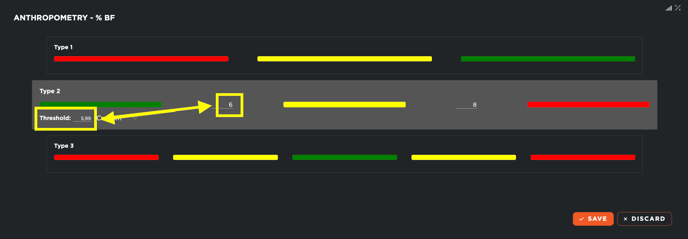
- Ensure that the closest value is aligned with the green threshold for accuracy.
-
The same logic works for the other confidence interval types if needed.
-
Click "Save" to confirm the thresholds.
-
Apply the thresholds to one or multiple players, both using custom values and threshold intervals.
Creating a New Record
To create a new record:
-
Click on the "Records" section on the left side.
-
View the list of previous records.
-
Click "Add New Record."
Upon creating a new record, an associated event in the planning module will be automatically generated and linked to the test. Data can be added in multiple ways:
-
Manual Entry: Click "Edit," enter the data manually, and save. If thresholds have been set, the system will display feedback using colored indicators.
-
CSV Import: Download the empty CSV template, fill it out in Excel following the provided structure, and upload it via "Edit" → "Upload CSV." This method allows for quick and bulk data entry. In detail, you can add:
- Different players' test data on different dates or hours
- One player's test data on different dates or hours
- Different players' test data on the same dates or hours
It's crucial that the CSv keep the some structure and that the format of the date column is dd/mm/yyyy hh:mm